Accessing the Secure MACH Therapy Intranet
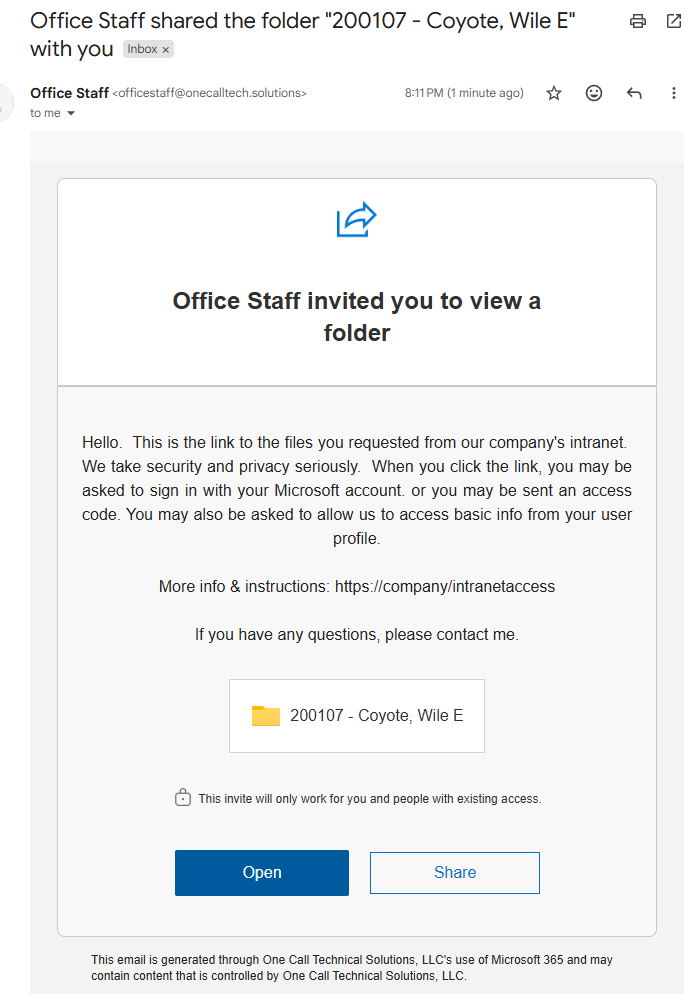
MACH Therapy takes privacy and security seriously. Before you can access files and pages, we need to confirm your identity. The process is quick and simple, and follows one of two paths depending on whether the email address you received the link at is also tied to a Microsoft account.
This guide walks you through either path.
With a Microsoft account
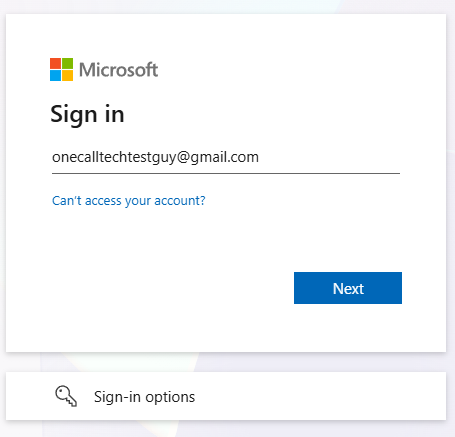
Microsoft sign-in
Click Open in the invitation email. When Microsoft asks you to sign in, use the same work or school account you normally use, the one the invitation was sent to.
Accept permissions
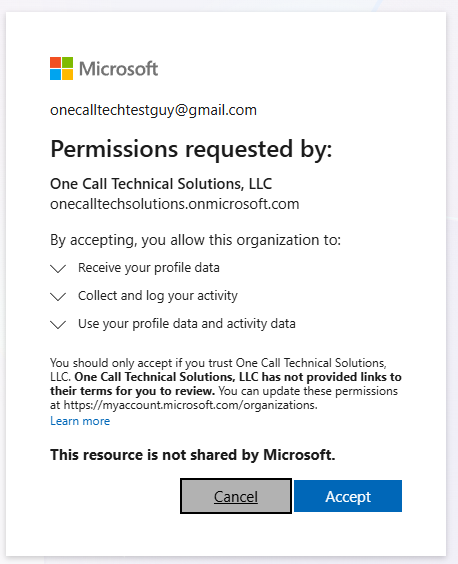
The first time you sign in, Microsoft shows a "Permissions requested by Rocky Mountain Therapy Services" screen. This lets RMTS see your name and email address so we know who's accessing our files. Click Accept, and you're in.
Without a Microsoft account
Enter your email
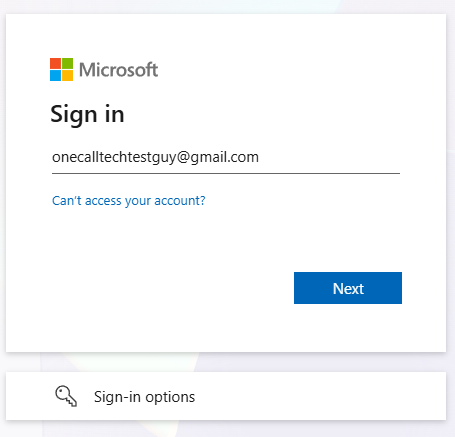
Click Open in the invitation email. On the Microsoft Sign in screen, type the email address the invitation was sent to and click Next. No password is needed.
Emailed code
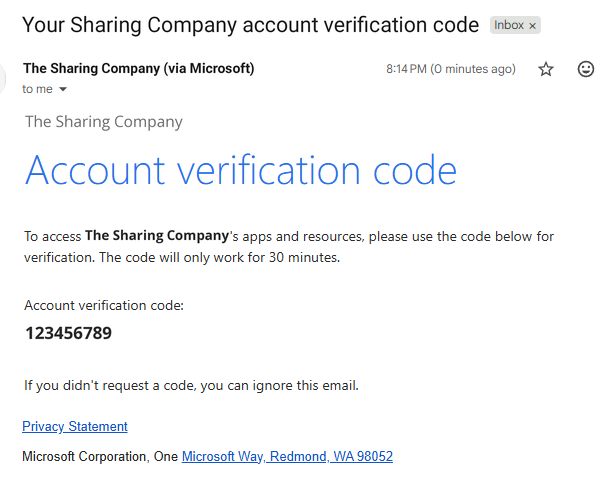
Microsoft emails you a one-time verification code from MACH Therapy. Enter it on the sign-in screen and click Sign in. The code is good for 30 minutes. If it doesn't arrive, check your junk or spam folder.
Accept permissions
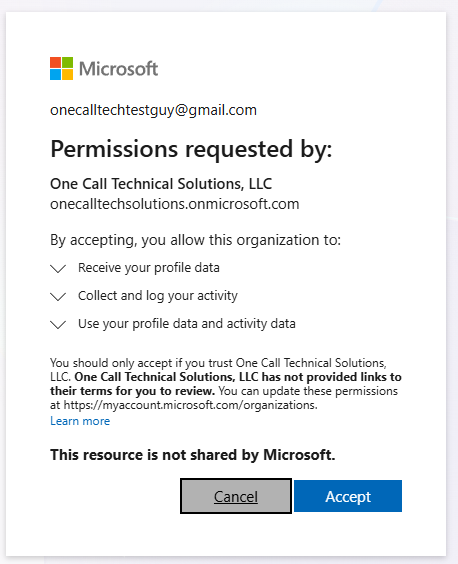
The first time you sign in, Microsoft shows a "Permissions requested by MACH Therapy" screen. This lets MACH see your name and email address so we know who's accessing our files. Click Accept, and you're in.
You may be required to set up multi-factor authentication.
If you have any issues getting access, you can reach out to the MACH Therapy staff member who sent you the link or to IT support.
support@machtherapy.com
Call or Text: 541-666-5544